Gimbal Functions
Overview
To use the “Gimbal Control” feature provided by PSDK, developers must first design the payload’s gimbal and implement a program to control it. After registering the gimbal control functions to the designated interfaces in PSDK, the payload with gimbal functionality developed based on PSDK can be controlled via a mobile app developed with MSDK or a remote controller. Users can also obtain relevant information from the payload, such as its attitude.
Basic Concepts
Gimbal Status Information
A gimbal-mounted payload developed with PSDK is required to report its status, current attitude, and calibration status according to specified guidelines. This allows accurate gimbal control based on its status via the mobile app or onboard computer.
Gimbal Joints and Joint Angles
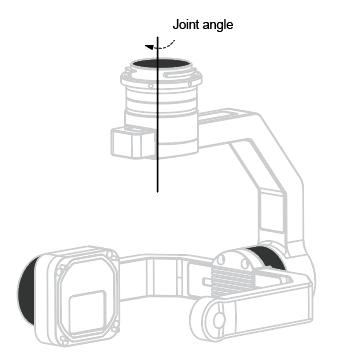
As shown in the figure, the gimbal joints are structural components that rotate and drive the payload, namely, the gimbal motors. The gimbal joint angle refers to the rotation angle of the gimbal motor. This tutorial uses the aircraft coordinate system to describe the joint angles of the gimbal.
Gimbal Attitude and Attitude Angles
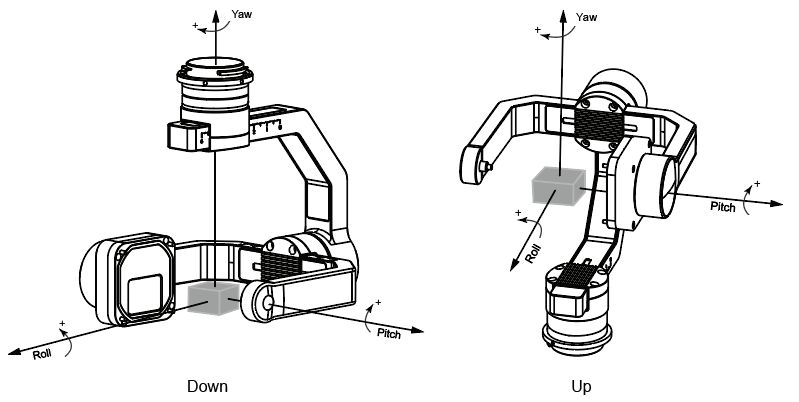
As shown in the figure, the gimbal can adjust its attitude according to user control commands. The gimbal attitude angle refers to the orientation of the payload on the gimbal, described using the Earth-fixed NED (North-East-Down) coordinate system. These angles are also known as Euler angles.
Gimbal Modes
Gimbal modes determine how the gimbal responds to the movement of the drone:
- Free Mode: The gimbal does not rotate when the drone's attitude changes.
- FPV Mode: When the drone's attitude changes, the gimbal rotates along the yaw and roll axes to maintain a stable field of view for the payload.
- Yaw-Follow Mode: In this mode, the gimbal's yaw axis follows the drone's yaw movements.
Note:
- In all three modes above, the gimbal can also be controlled by other modules in the drone system (e.g., gimbal control commands during waypoint flight), the remote controller, or the mobile app.
Smoothness
Gimbal smoothness refers to how gradually the gimbal responds to movement commands. The gimbal developed using PSDK supports smooth start and stop by allowing users to set a smoothness control factor through a mobile app developed with MSDK.
- Smoothness Factor: This factor determines the gimbal's maximum angular acceleration.
- Maximum Angular Acceleration of Gimbal Rotation: Max Acceleration=10000 × (0.8 ^ (1 + X)) deg/s^2 (where X is the smoothness control factor)
Maximum Speed Percentage
- Maximum Speed Percentage: Determines the gimbal's maximum rotation speed.
- Actual Maximum Rotation Speed = Default Maximum Speed × Maximum Speed Percentage
Note:
- Developers can configure the default maximum rotation speed of the gimbal based on actual usage needs.
Angle Fine-Tuning
Gimbals developed with PSDK support fine-tuning of joint angles via a mobile app developed with MSDK. The adjusted angles can also be stored as calibration parameters in the payload to reduce various types of gimbal error.
Gimbal Limit Function
To avoid potential damage to the gimbal caused by structural interference, and to prevent it from affecting the drone’s flight mission, it is essential to configure both mechanical and software limits.
- Mechanical Limit: Defined by the physical structure and design of the gimbal-mounted payload. For details, refer to the standard declaration.
- Software Limit: Developers can configure software limits based on actual application needs:
- Set Euler angle limits for the pitch, roll, and yaw axes
- Set extended Euler angle limits for the pitch axis
- Set joint angle limits for the gimbal
Tips:
- After enabling the pitch axis range extension feature, you can switch the pitch Euler angle limit between the default and extended limits.
- When the gimbal reaches its limit angle, the mobile app developed with MSDK will receive a notification indicating that the gimbal has rotated to its limit.
Gimbal Reset
Gimbals developed with PSDK support resetting to their initial orientation via a mobile app developed with MSDK.
- Yaw Axis Reset: Resets the gimbal's yaw angle to the sum of the drone's yaw angle and the gimbal's yaw fine-tuning angle.
- Pitch and Yaw Axes Reset: Reset the gimbal's pitch angle to the fine-tuning value, and the yaw angle to the sum of the drone's yaw angle and the gimbal's yaw fine-tuning angle.
- Reset Yaw and Pitch Axes: Reset the yaw axis to the sum of the drone's yaw angle and the gimbal's fine-tuning angle. Resets the pitch axis to –90° plus the fine-tuning angle (for downward gimbals), or +90° plus the fine-tuning angle (for upward gimbals).
- Reset Yaw Axis Only: Reset the yaw axis to –90° plus the fine-tuning angle (for downward gimbals), or +90° plus the fine-tuning angle (for upward gimbals).
Implementing Gimbal Features
Developers should implement control functions of gimbal-mounted payloads according to the selected development platform and the actual requirements of their industry application. These functions should be constructed based on the T_UavGimbalCommonHandler structure defined in the PSDK. After registering the gimbal control functions to the designated PSDK interface, users can control gimbal-mounted payloads developed with PSDK to perform specific actions via a mobile app developed with MSDK.
    s_commonHandler.GetSystemState = GetSystemState;
    s_commonHandler.GetAttitudeInformation = GetAttitudeInformation;
    s_commonHandler.GetCalibrationState = GetCalibrationState;
    s_commonHandler.GetRotationSpeed = GetRotationSpeed;
    s_commonHandler.GetJointAngle = GetJointAngle;

    s_commonHandler.Rotate = UavTest_GimbalRotate;
    s_commonHandler.StartCalibrate = StartCalibrate;
    s_commonHandler.SetControllerSmoothFactor = SetControllerSmoothFactor;
    s_commonHandler.SetPitchRangeExtensionEnabled = SetPitchRangeExtensionEnabled;
    s_commonHandler.SetControllerMaxSpeedPercentage = SetControllerMaxSpeedPercentage;
    s_commonHandler.RestoreFactorySettings = RestoreFactorySettings;
    s_commonHandler.SetMode = SetMode;
    s_commonHandler.Reset = Reset;
    s_commonHandler.FineTuneAngle = FineTuneAngle;
Using Gimbal Features
To use gimbal control features, you must first implement the gimbal control functionality, followed by the gimbal limit functionality. Then, adjust the gimbal's attitude, target angles, and limit flags according to the gimbal mode. Finally, implement the gimbal calibration feature to calibrate the gimbal.
Using Gimbal Management Features
1. Gimbal Control Module Initialization
Before using the gimbal control feature, you need to initialize the gimbal control module to ensure that the gimbal functions operate correctly.
if(UAV_ERROR_SYSTEM_MODULE_CODE_SUCCESS != UavGimbal_Init) {
    printf("UavGimbal_Init failed\n");
    return;
}
2. Register Gimbal Control Functions
When using the gimbal control features provided by PSDK to control a gimbal-mounted payload, developers need to register the gimbal control functions to the designated interface.
if(UAV_ERROR_SYSTEM_MODULE_CODE_SUCCESS != UavGimbal_RegCommonHandler(&s_commonHandler)) {
    printf("UavGimbal_RegCommonHandler failed\n");
    return;
}
3. Implement Callback Functions to Calculate Gimbal Rotation Speed
Implement callback functions to calculate the gimbal's rotation speed, adjust its attitude, and record the target angles and rotation speed during gimbal movement.
T_UAVReturnCode UavTest_GimbalRotate(E_UAVGimbalRotationMode rotationMode, T_UavGimbalRotationProperty rotationProperty,
                              T_UAVAttitude3d rotationValue)
{
    /// do gimbal rotate
}
5. Control Gimbal Rotation
Based on the gimbal's attitude and rotation speed, the payload converts relative angle commands, absolute angle commands, or velocity commands into rotation speeds, and then controls the gimbal's movement accordingly.
Adjust Gimbal Parameters in Different Modes
Developers can adjust the gimbal's attitude, target angle, and limit flags according to actual usage requirements for different gimbal modes.
- In FPV Mode:
- Adjust Gimbal Attitude: Add the drone’s attitude variation to the gimbal’s roll and yaw axes.
- Adjust Gimbal Target Angle: During gimbal rotation, add the drone’s attitude variation to the roll and yaw axes.
- In YAW Mode:
- Adjust Gimbal Attitude: Add the drone’s attitude variation to the gimbal’s yaw axis.
- Adjust Gimbal Target Angle: During gimbal rotation, add the drone’s attitude variation to the yaw axis.
- Adjust the movement range of the gimbal's attitude and target angles. The payload can calculate whether the gimbal has reached a limit.
Using the Gimbal Calibration Feature
To use the gimbal calibration feature, you must first implement the corresponding calibration functions and register them to the designated interface, so users can calibrate payloads with gimbal functionality via a mobile app developed with MSDK.
Gimbal Calibration Status Update
After the payload performs gimbal calibration, it will record the gimbal's calibration status. The calibration status can then be retrieved through a mobile app developed with MSDK.
When the “Gimbal Auto Calibration” feature is triggered from an MSDK-based mobile app, the payload developed with PSDK will receive the gimbal calibration command and execute the calibration accordingly.